Courses & sections
Create single courses or whole programs, organised into categories and sections.
“Create a bootcamp with 4 courses.”
Open-source · Moodle plugin + MCP server
Let an AI assistant read your courses and build real content — pages, quizzes, forums, assignments — from plain-English instructions. No clicking through admin menus.
YouAdd a quiz to Biology 101 with a true/false question.
→ create_quiz { cmid: 42, instanceid: 8 }
→ add_truefalse_question { questionid: 17, slot: 1 }
✓ Quiz created in Biology 101 with 1 question.
The plugin adds the activity-creation functions Moodle's core API is missing. The server exposes everything as typed tools for the AI. One web service token connects them.
The screenshot below is an actual result — a four-course program with its content, created from plain-English prompts.
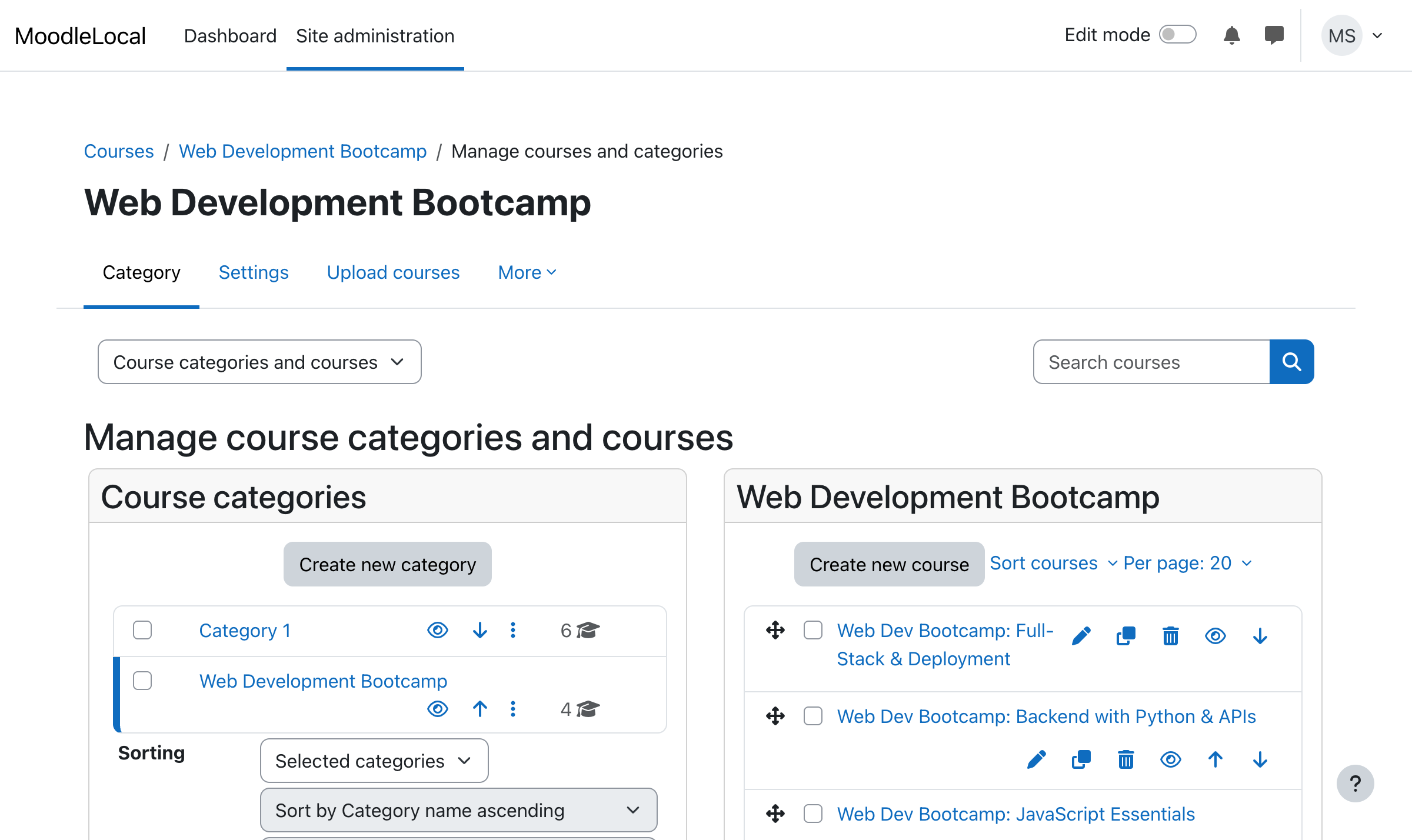
“Create a Web Development Bootcamp category with four courses.” — done in seconds.
Everything runs directly against your Moodle through official APIs — real records, not simulations.
Create single courses or whole programs, organised into categories and sections.
Pages, books, labels, URLs, forums, choices and assignments with rich HTML.
Build quizzes with multiple-choice, true/false and short-answer questions.
Create users, enrol (single or bulk), unenrol, and manage group membership.
Rewrite page content, move activities, and grade submissions with feedback.
Grades, deadlines, progress and combined dashboards across courses.
Full instructions are in the README.
Site administration → Plugins → Install plugins → upload mcpbridge.zip and confirm the upgrade.
Turn on web services and the REST protocol, then create a token. This is how the AI authenticates — no password required.
Run the Python MCP server with your Moodle URL and token, then register it in claude_desktop_config.json.
Describe what you want and the assistant calls the right tools against your live Moodle.
Runs on any Moodle 4.2+, self-hosted or institutional. It authenticates with a web service token — not a password — so it is independent of how your users sign in.
The AI sends a token an admin generates — never a password. It can only do what that user's capabilities allow.
SSO/SAML, LDAP, Google/Microsoft OAuth, CAS or manual — all identical. Tokens are a separate channel.
Admin access to install the plugin and enable web services. Some managed clouds may not allow custom plugins.